https://weblucy.com/help/punkty-kotwiczenia
If you want to direct the user to a specific section on the page after clicking on an element on the page, you should use anchor points - the so-called anchor tag.
Assign an anchor to the selected item
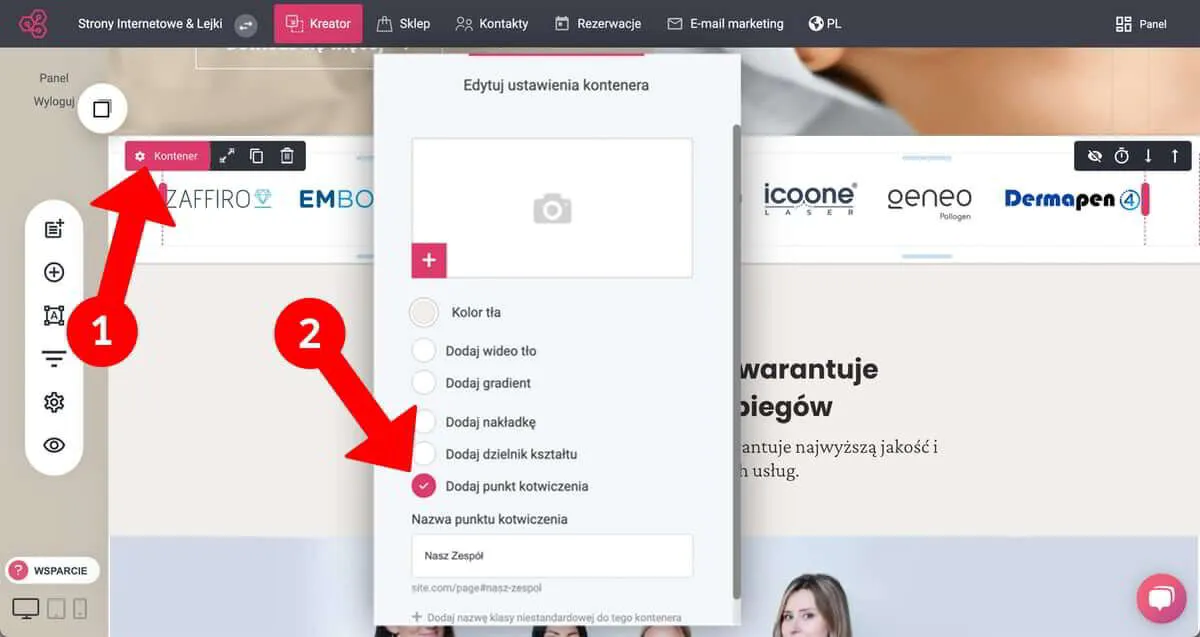
- While in the wizard, hover your cursor over the "Container" to which you want to assign an anchor, and then click "pinwheel."
- When the context menu for the selected container appears, select "Add anchor point" in the available options and enter its name, then save the changes by clicking the green "Save" button in the upper-right corner of the panel.
WEBLUCY - assign anchor point
Set the transition action to the anchor point
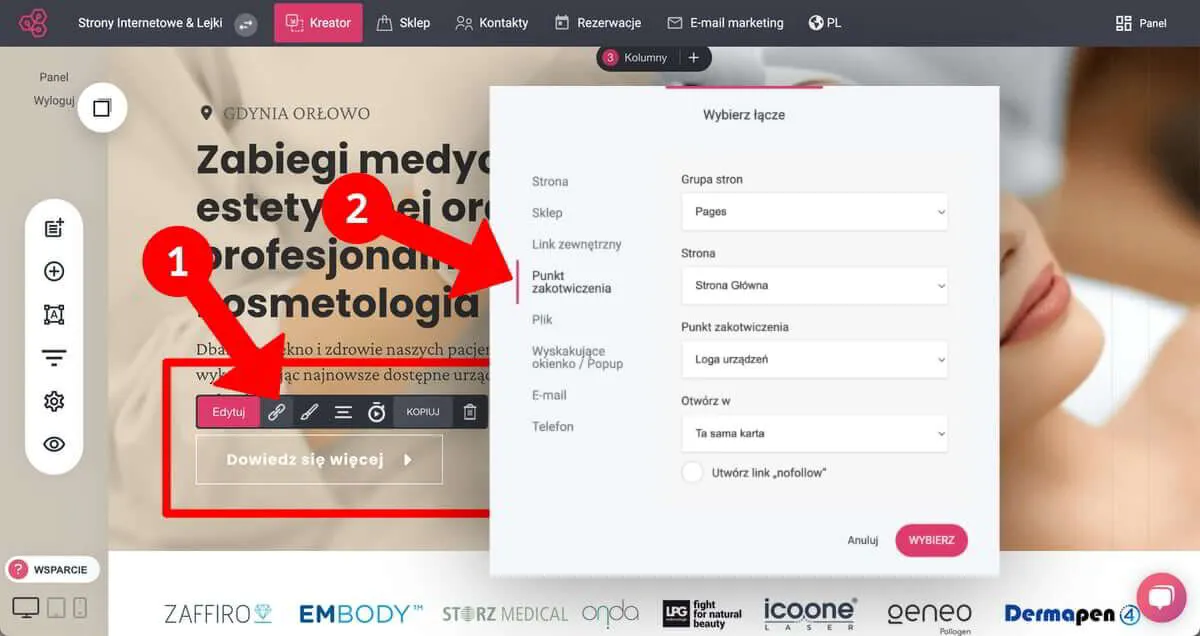
- Select the object to which you want to assign a move action to a preset anchor point and press the chain icon (link) as shown in the image below.
- When the context menu for the selected object appears, go to the "Anchor point" section, and then select the locations of the anchor point you set earlier. Finally, save the changes.